


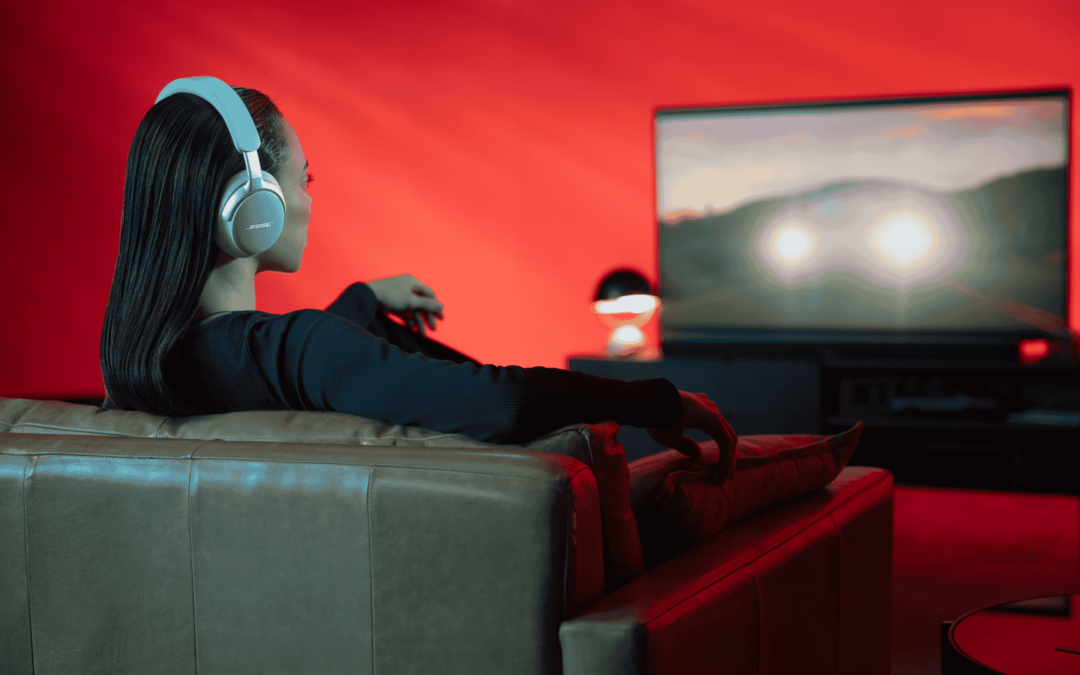
Wireless headphones and earbuds have made listening more convenient than ever. No tangled cords, no plugs—just seamless audio wherever you go. Whether you’re pairing a new set of wireless earbuds for your daily commute or connecting your headphones to a laptop for work, knowing how to pair them properly makes all the difference.
This guide will walk you through how to connect wireless headphones and earbuds to any device, including iPhone, Android phones, Windows laptops or PCs, and Mac computers.
Note: Once you’ve mastered pairing, it’s just as important to learn how to clean your headphones properly to keep them performing—and sounding—their best.
Understanding Wireless Connectivity
Most wireless headphones, including those from Bose, connect using Bluetooth. Bluetooth is a short-range wireless technology that allows your headphones to communicate with phones, laptops, and other devices.
Each device type—iPhone, Android, Mac, and Windows—handles Bluetooth pairing slightly differently, but the basic idea is the same:
- Turn on Bluetooth on your device.
- Put your headphones in pairing mode.
- Select your headphones from the list of available devices.
Once paired, your device will automatically reconnect to your headphones the next time they’re powered on and in range.
How to Connect Wireless Headphones & Earbuds to an iPhone
Connecting wireless headphones to an iPhone takes just a few taps. Here’s how:
Step-by-Step (iPhone)
- Open Settings on your iPhone.
- Tap Bluetooth and make sure it’s turned ON.
- Put your wireless headphones or earbuds in pairing mode. Note: Most models require holding down the power or Bluetooth button until a light flashes or a tone plays.
- Under “Other Devices,” find your headphone name (for example, Bose QuietComfort Ultra Earbuds).
- Tap the name to connect. Once paired, it will move to “My Devices” and show “Connected.”
Tips if pairing fails:
- Turn Bluetooth off and on again.
- Make sure your headphones aren’t connected to another device
- Restart your iPhone if it doesn’t recognize the device.
- For future use, your iPhone will automatically reconnect when Bluetooth is enabled.
How to Connect Wireless Headphones & Earbuds to an Android Phone
Android phones support Bluetooth pairing across many brands, and the process is similar across Samsung, Google, and other Android models.
Step-by-Step (Android)
- Swipe down from the top of your screen and hold the Bluetooth icon to open Bluetooth Settings.
- Ensure Bluetooth is turned ON.
- Put your headphones or earbuds in pairing mode.
- Wait for the device name to appear under Available Devices.
- Tap your headphones (e.g., Bose QuietComfort Ultra Headphones) to connect.
Optional: You can rename your device or set it as the default audio output under Bluetooth settings.
Troubleshooting:
- If your headphones don’t appear, toggle Bluetooth off and on.
- Remove old pairings by tapping the gear icon → Forget.
- Stay within a 1-meter range when pairing for the first time.
How to Connect Wireless Headphones & Earbuds to a Mac (macOS)
Pairing Bluetooth headphones to your Mac lets you enjoy better sound during work, video editing, or entertainment.
Step-by-Step (Mac)
- On the top menu, click the Apple logo → System Settings.
- Select Bluetooth from the sidebar.
- Turn Bluetooth ON.
- Put your headphones into pairing mode.
- When your Bose headphones appear in the list, click Connect.
- Wait until the status changes to Connected.
Set your headphones as audio output:
- Go to System Settings → Sound → Output.
- Choose your Bose headphones as the output device.
If connection fails:
- Remove old pairings by clicking the “x” beside the device name.
- Turn Bluetooth off and on again.
- Restart both your Mac and headphones.
How to Connect Wireless Headphones & Earbuds to a Windows Laptop or PC
Windows 10 and Windows 11 make it easy to connect Bluetooth headphones, but desktop PCs without built-in Bluetooth will need a USB Bluetooth adapter.
Step-by-Step (Windows 10/11 with Bluetooth built in)
- Click Start → Settings → Bluetooth & Devices.
- Turn Bluetooth ON.
- Click Add Device → Bluetooth.
- Put your headphones in pairing mode.
- Select your Bose headphones from the list and click Connect.
If your PC doesn’t have Bluetooth
- Plug a Bluetooth USB adapter into your computer.
- Wait for Windows to install the driver automatically.
- Repeat the pairing steps above.
Tips:
- Ensure your computer’s Bluetooth driver is updated.
- If you’ve connected multiple devices before, remove the old ones first to avoid interference.
- Keep your headphones charged—low battery can cause connection issues.
How to Connect Wireless Headphones & Earbuds to a TV
Whether you’re watching your favorite series late at night or want a more immersive movie experience, connecting your wireless headphones to your TV can make a big difference.
Step-by-Step (Smart TV with Built-In Bluetooth)
- Turn on your TV and open Settings.
- Go to Bluetooth or Connections.
- Select Add Device or Pair New Device.
- Put your wireless headphones in pairing mode.
- Wait for your headphones to appear on the TV screen, then select them to connect.
- Once connected, all sound will automatically play through your headphones.
If Your TV Doesn’t Have Bluetooth
Not all TVs include built-in Bluetooth, but you can still connect your wireless headphones using a Bluetooth receiver.
- Plug the Bluetooth receiver into your TV’s USB port for power
- Once plugged the receiver should automatically turn on otherwise, turn on the transmitter and set it to pairing mode.
- Put your wireless headphones in pairing mode as well.
- Wait for both devices to pair automatically—this usually takes a few seconds.
Tip: For best performance, choose a Bluetooth transmitter with low-latency support (aptX Low Latency) to minimize audio lag while watching movies or gaming. Alternatively, use a 3.5mm headphone jack (AUX output) for audio if supported.
Pairing Bose Headphones or Earbuds with Multiple Devices
Most Bose wireless headphones and earbuds support multipoint pairing, which means they can connect to two devices at the same time—like your phone and laptop.
How to Use Multipoint Pairing
- Connect to the first device normally (for example, your iPhone).
- Put your headphones back into pairing mode.
- On your second device (like your laptop), select your Bose headphones and connect.
- Both devices will now stay paired. You can play music from one and switch to calls on the other.
Tip: Manage multiple connections easily using the Bose Music App, available on iOS and Android.
Troubleshooting Bluetooth Connection Issues
If your wireless headphones won’t connect or keep disconnecting, try these quick fixes:
- Reset your headphones. Most Bose models can be reset by holding the power and Bluetooth buttons for 10 seconds.
- Forget and reconnect the device. Remove it from your Bluetooth list and pair again.
- Update firmware. Use the Bose Music App to install software updates.
- Charge your device. Low battery can affect Bluetooth stability.
- Stay in range. Bluetooth works best within 10 meters (33 feet).
- Avoid interference. Keep away from routers or other Bluetooth devices during pairing.
Frequently Asked Troubleshooting Questions
Why won’t my Bluetooth headphones connect automatically?
For other brands, make sure Bluetooth is turned on and that your headphones are close to the device. Most wireless headphones reconnect automatically when they’ve been paired before.
For Bose, automatic reconnection happens when both the device and headphones are powered on and within range. If it doesn’t reconnect, manually select your Bose headphones in your Bluetooth list.
How do I reset my Bose wireless headphones or earbuds?
For other brands, you can usually reset your headphones by holding the power or Bluetooth button for several seconds until the lights flash.
For Bose, press and hold the Power and Bluetooth buttons together for 10 seconds until the LED light flashes, or use the Bose Music App for model-specific reset instructions.
Can I connect my wireless headphones to two devices at once?
For other brands, put both the headphones and the Bluetooth transmitter or TV in pairing mode and wait for the connection to complete.
For Bose, hold the Bluetooth button until the light flashes blue, then pair using your TV’s Bluetooth settings or a Bluetooth transmitter if your TV doesn’t support Bluetooth.
What’s the Bluetooth range of Bose headphones?
Most Bose headphones and earbuds have a range of up to 30 Feet in open space. Walls, furniture, or wireless routers may shorten this distance slightly.
For other brands, Bluetooth typically works within a 10-meter (33-foot) range in open space.
How do I fix headphones not showing in the Bluetooth list?
For other brands, make sure the headphones are in pairing mode — the LED light should blink rapidly.
For Bose, hold the Bluetooth button until the light flashes blue, or clear your device list using the Bose Music App before reconnecting.
How can I prevent my Wireless Headphones from disconnecting?
Wireless headphones may disconnect due to low battery, interference, or distance from the paired device. To prevent this, make sure both your headphones and device are fully charged, stay within 9 meters (30 feet) of the Bluetooth source, and avoid areas with heavy wireless interference such as Wi-Fi routers or microwaves. If you’re using Bose headphones, try resetting them or updating the firmware using the Bose Music app, which often resolves connection drops or pairing issues. For other brands, check the manufacturer’s support page for Bluetooth troubleshooting steps or try unpairing and re-pairing your device to refresh the connection.
Explore Bose Audio Categories On Eleksis.com
Bose designs premium sound systems for every lifestyle. Discover which category fits your needs:
- Wireless Headphones & Earbuds – Enjoy total freedom and crystal-clear sound without cables
- Noise Cancelling Headphones & Earbuds – Block out distractions and stay focused anywhere.
- Home Theater Speakers & Systems – Experience cinematic sound right in your living room.
- Bluetooth Speakers – Compact, portable, and built for music on the go.
- Wireless Home Speakers – Fill every room with a rich, room-filling sound.
Connect with Confidence — Only with Bose
Connecting your wireless headphones or earbuds should be quick and simple once you know the steps. Whether you’re pairing to your phone, laptop, or desktop, Bose devices are designed for seamless Bluetooth performance and outstanding sound.
Shop 100% original Bose products at Eleksis Marketing Corporation, the authorized distributor of Bose in the Philippines.
Enjoy free nationwide shipping, official warranty, and expert after-sales support when you shop online at eleksis.com
Related Resources: